
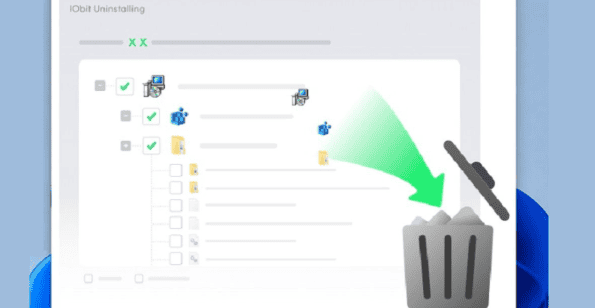
How to Completely Uninstall Programs on Windows (And Why Leftovers Matter)
Every Windows PC collects software over time. You install a trial tool, test a new browser, or download a game and never open it again. When you finally decide to clean house, you head to Settings, click Uninstall, and assume the job is done. In reality, it usually isn’t.
Standard uninstallers often leave files, folders, and registry entries behind. Over months and years, these leftovers add up and quietly slow your computer down. In this guide, we’ll explain why this happens, what the risks are, and how to remove software the right way.
Why Windows Leaves Leftovers Behind
When a program is installed, it spreads itself across your system. It places files in Program Files, saves settings in AppData, creates registry keys, and sometimes adds startup entries or background services.
The built-in uninstaller only removes what the developer told it to remove. Many developers don’t write thorough removal routines, so you end up with:
- Orphaned folders in AppData, ProgramData, and Documents
- Registry entries that point to software that no longer exists
- Temporary and cache files that never get deleted
- Startup items that still try to launch a missing program
- Browser extensions installed alongside the software
Individually these are small. Together, they clutter your system and waste storage.
The Real Cost of Leftover Files
You might wonder whether a few stray files are worth worrying about. Here is what they can cause over time.
Wasted disk space. Large applications such as video editors, games, and design tools can leave gigabytes of cache and data files behind, which hurts most on smaller SSDs.
Slower performance. A bloated registry and unnecessary startup entries can lengthen boot times and make Windows feel sluggish.
Software conflicts. Old configuration files can interfere when you reinstall the same program or install a similar one, causing errors or crashes.
Privacy concerns. Leftover logs, account data, and cached files may stay on your drive long after you thought the software was gone.
Why Manual Cleanup Isn’t a Great Option
Some advanced users try to hunt down leftovers by hand, searching folders and editing the registry. It’s possible, but risky. Deleting the wrong registry key can cause system errors or even stop Windows from working properly. It’s also time-consuming, especially if you want to remove several programs.
This is why a dedicated uninstaller makes sense for most people. It automates the deep scan and removes what the standard process misses, without forcing you to touch the registry yourself.
IObit Uninstaller: A Practical Way to Remove Software Properly
If you want a reliable solution, IObit Uninstaller is worth considering. It is built specifically to remove programs completely, including the traces that Windows leaves behind. Here are the features that make it useful for everyday users.
Deep Scan for Leftovers
After the normal uninstall finishes, the tool scans your system for remaining files, folders, and registry entries linked to that program and lets you remove them in one step. This is the main reason people choose a dedicated uninstaller over the built-in option.
Batch Uninstall
Cleaning up several programs one by one is tedious. Batch uninstall lets you select multiple applications and remove them together, which saves a lot of time when you are tidying an older PC or setting up a fresh system.
Stubborn Program Removal
Some software refuses to uninstall because of corrupted files, missing uninstallers, or running processes. A forced removal option helps you deal with these cases, so you are not stuck with broken programs sitting in your list.
Browser Plugin and Toolbar Cleanup
Unwanted toolbars and extensions often come bundled with free software. The tool helps you find and remove these browser add-ons, which can improve both browsing speed and privacy.
Windows Apps and Bloatware Removal
Windows also ships with pre-installed apps that many users never touch. You can uninstall these built-in apps alongside regular programs and reclaim some space.
Install Monitor
When you install new software, the monitoring feature can track the changes it makes to your system. That makes later removal cleaner and more accurate, because the tool knows exactly what was added.
How to Uninstall a Program Completely: Step by Step
Here is a simple process you can follow:
- Back up important data. If the program stores files you care about, such as projects or saved settings, copy them somewhere safe first.
- Download and install a trusted uninstaller. You can get IObit Uninstaller from the official IObit website to make sure you are using a genuine, safe version.
- Open the program list. Find the software you want to remove. You can sort by size, install date, or frequency of use to spot programs you no longer need.
- Run the uninstall. Select the program and let the tool run the standard uninstaller first.
- Enable the leftover scan. Choose the option to scan for and delete remaining files and registry entries.
- Restart your PC. A restart ensures that any locked files are cleared and the changes take full effect.
Tips for Keeping Your PC Clean Long Term
Uninstalling properly is only part of good PC maintenance. A few habits will keep Windows running smoothly:
- Review installed software every few months and remove anything you no longer use.
- Be careful during installation. Choose custom install options so bundled software doesn’t sneak in.
- Download only from official sources to avoid adware and unwanted extras.
- Keep your software updated, since outdated programs can create security gaps.
If you enjoy practical tech guides like this one, you can find more useful articles on Voozonic.
Final Thoughts
Removing a program shouldn’t mean leaving pieces of it scattered across your system. Standard uninstallers are fine for basic needs, but they rarely finish the job. Leftover files, registry entries, and startup items slowly drag down performance and use up valuable storage.
For anyone who wants a cleaner, faster Windows experience, a dedicated tool like IObit Uninstaller is a practical choice. It handles deep cleanup, stubborn programs, and batch removal in one place, so you don’t have to touch risky manual fixes. Combine it with good habits, and your PC will stay lean and responsive for much longer.